🗓️ New Booking Modes for every type of space
Not every space should be booked the same way. New Booking Modes let you configure reservations based on how each space is actually used.
Not every space should be booked in the same way. A meeting room often needs flexible reservation times, a parking spot usually works best as a full-day booking, and shared spaces often require clearly defined time slots. That is why we are introducing new Booking Modes, allowing you to configure reservations based on how each space is actually used.
What's new:
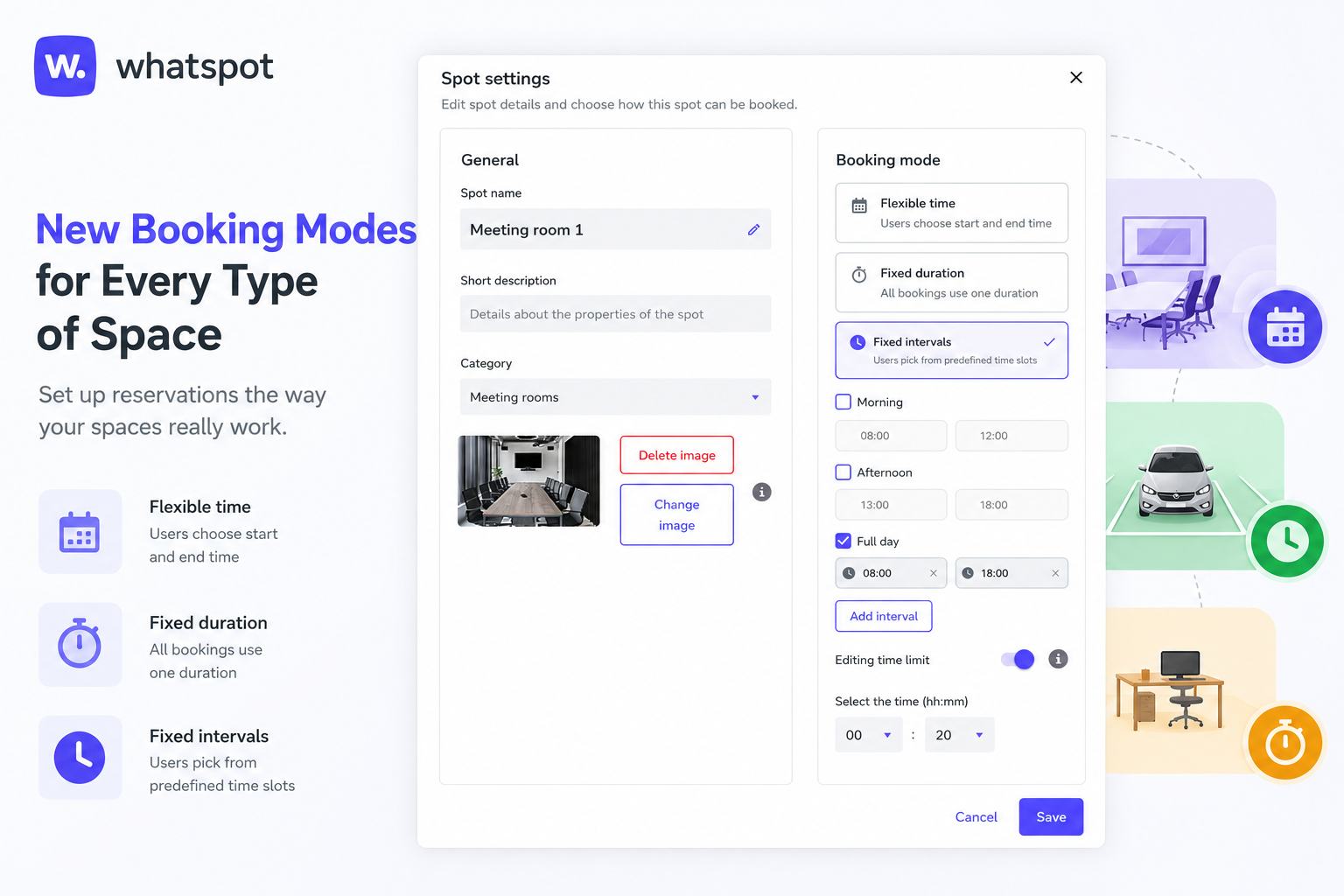
• Flexible Booking allows users to choose any reservation start and end time. Ideal for meeting rooms, office spaces, and everyday internal use.
• Fixed Duration creates bookings in predefined time slots, such as 60-minute reservations. Perfect for shared spaces, classrooms, studios, or public rentals.
• Fixed Intervals allows reservations only within predefined blocks, such as a full day, morning, or afternoon. Best for parking spots, desks, company vehicles, or equipment.
• Each space can have its own booking mode based on its specific rules and usage.
• Booking Modes work for both internal reservations and public booking forms. When needed, administrators can still create reservations outside the standard rules using a flexible booking mode.
Why use it:
✅ Fewer booking mistakes thanks to reservation rules that reflect real-world usage.
✅ Easier management of different types of resources within a single organization without compromises.
✅ Better space utilization and a clearer booking process for both employees and external visitors.
How to use:
1. Open the administration settings of the selected space or resource.
2. Choose the desired booking mode in the reservation settings.
3. Configure slot lengths or time intervals as needed.
4. Save your changes and start accepting bookings using the new rules.
5. If an exception is required, administrators can create a reservation using the flexible mode.
👥 Book reservations for colleagues or guests
Administrators and category managers can now create reservations for other users or external guests. The feature simplifies visitor management and team bookings.
Whatspot can now create reservations for other users or external guests directly from the booking stepper. The feature simplifies visitor management and team bookings.
What's new:
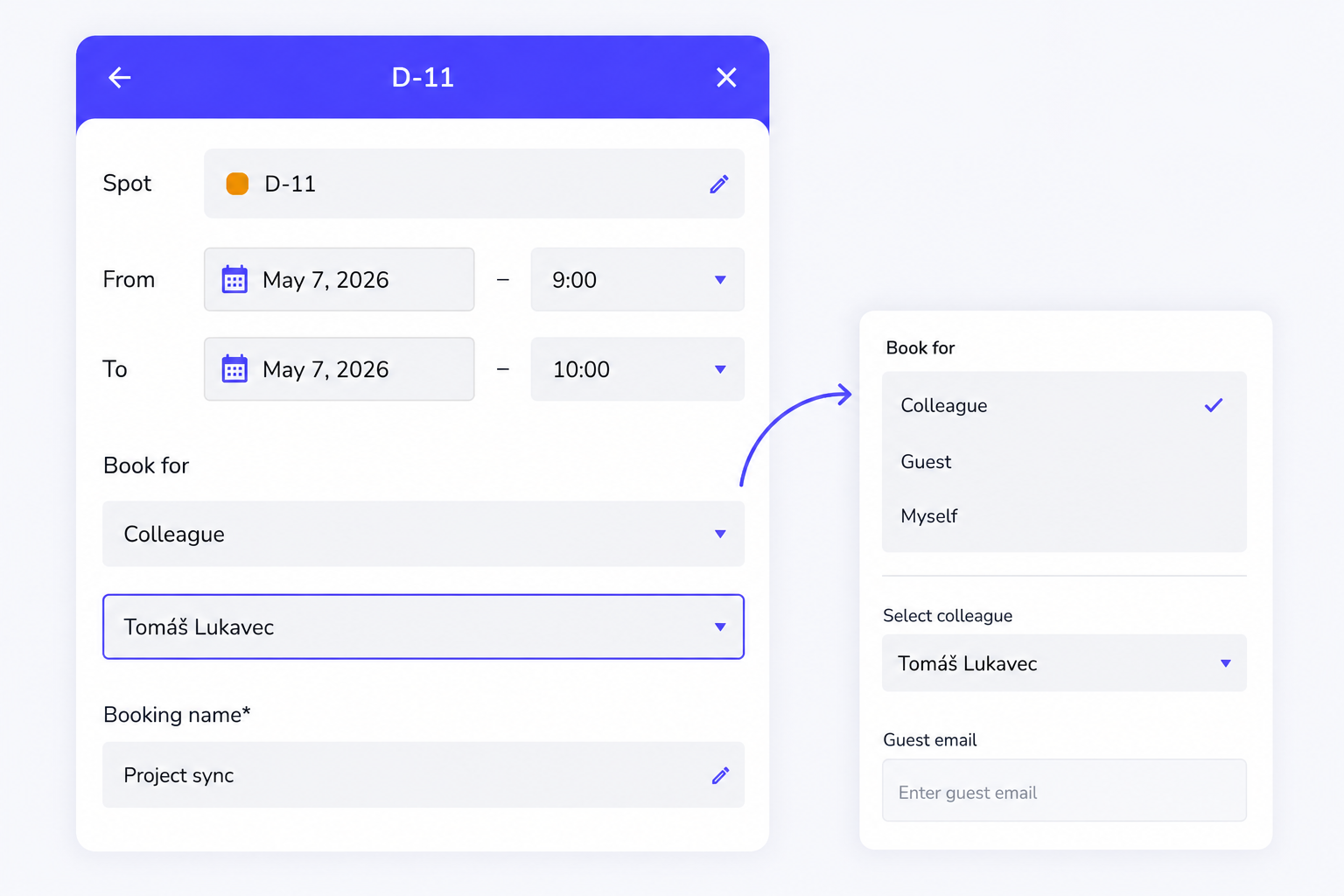
• The reservation stepper now includes a selection for who the reservation is created for.
• Administrators and managers can create reservations for themselves or colleagues.
• If public reservations are enabled, the Guest option is available.
• After entering the guest e-mail address, the guest automatically receives a reservation notification.
Why use it:
✅ Faster reservation management for receptions and office managers.
✅ Easier organization of visits and external meetings.
✅ Guests automatically receive all important information by e-mail.
How to use:
1. Open the reservation creation stepper.
2. Select who the reservation should be created for.
3. Choose a colleague or the Guest option.
4. Enter the guest's e-mail address for the notification.
⏰ Upcoming reservation reminder
Whatspot can now notify users about upcoming reservations by e-mail and, in the mobile app, also by push notification. The feature helps reduce forgotten bookings and frees up unused spaces in time.
A new reminder notifies users before their reservation starts — by e-mail, and by push notification in the mobile app. This helps reduce forgotten bookings and frees up unused spaces in time.
What's new:
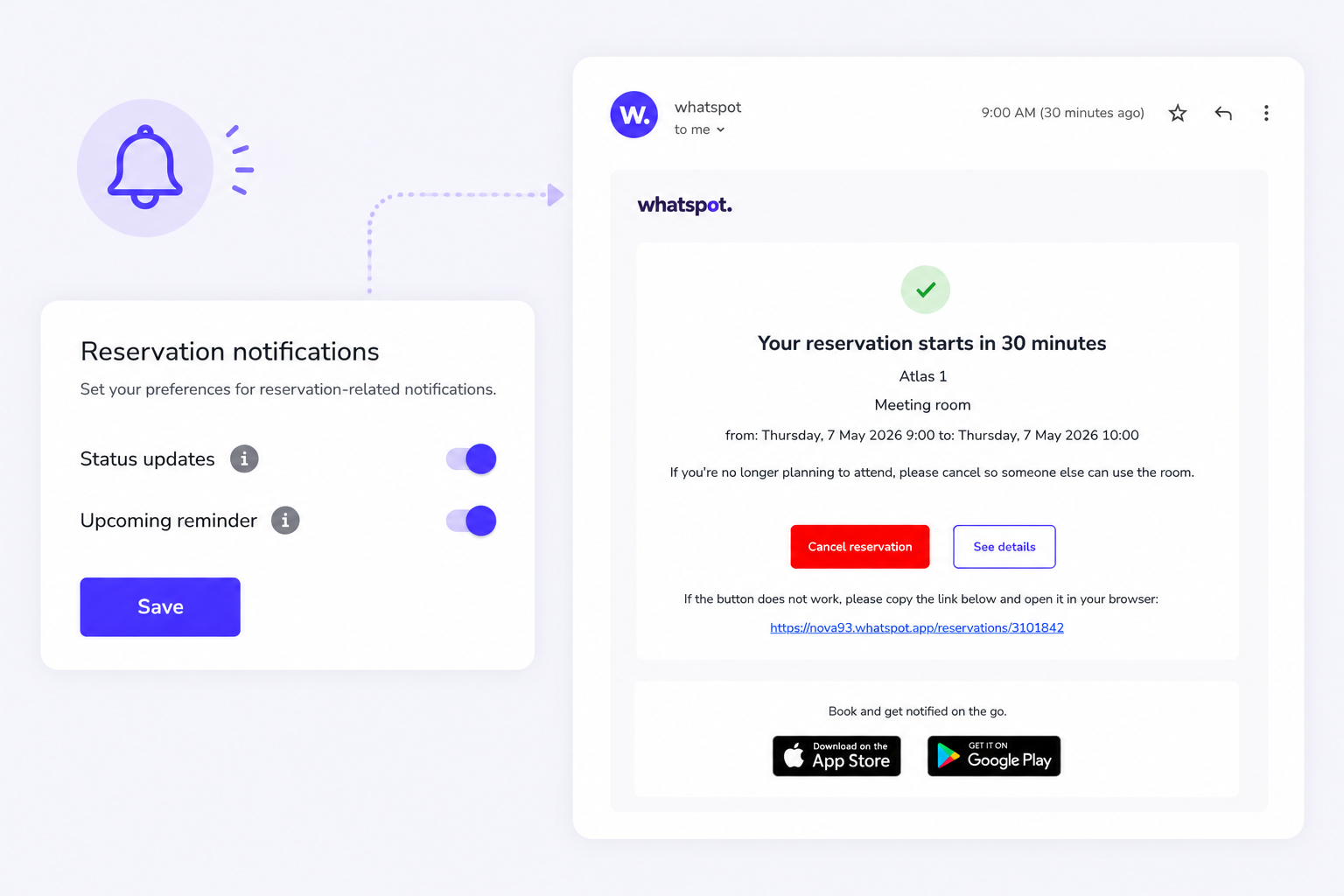
• A new Upcoming reminder option is now available in Edit Profile.
• Whatspot sends an e-mail notification 30 minutes before the reservation starts.
• Mobile app users also receive a push notification.
• Users can keep the reservation unchanged or cancel it immediately.
• The reminder works automatically for all future reservations.
Why use it:
✅ Fewer blocked spaces without actual usage.
✅ Better availability of desks and meeting rooms.
✅ Users have a better overview of their reservations.
How to use:
1. Open Edit Profile.
2. Enable the Upcoming reminder option.
3. A notification will arrive 30 minutes before the reservation — by e-mail, or by push notification in the mobile app.
4. Keep or cancel the reservation directly from the notification.
Prevent no-shows from blocking your spaces — Check-in is here
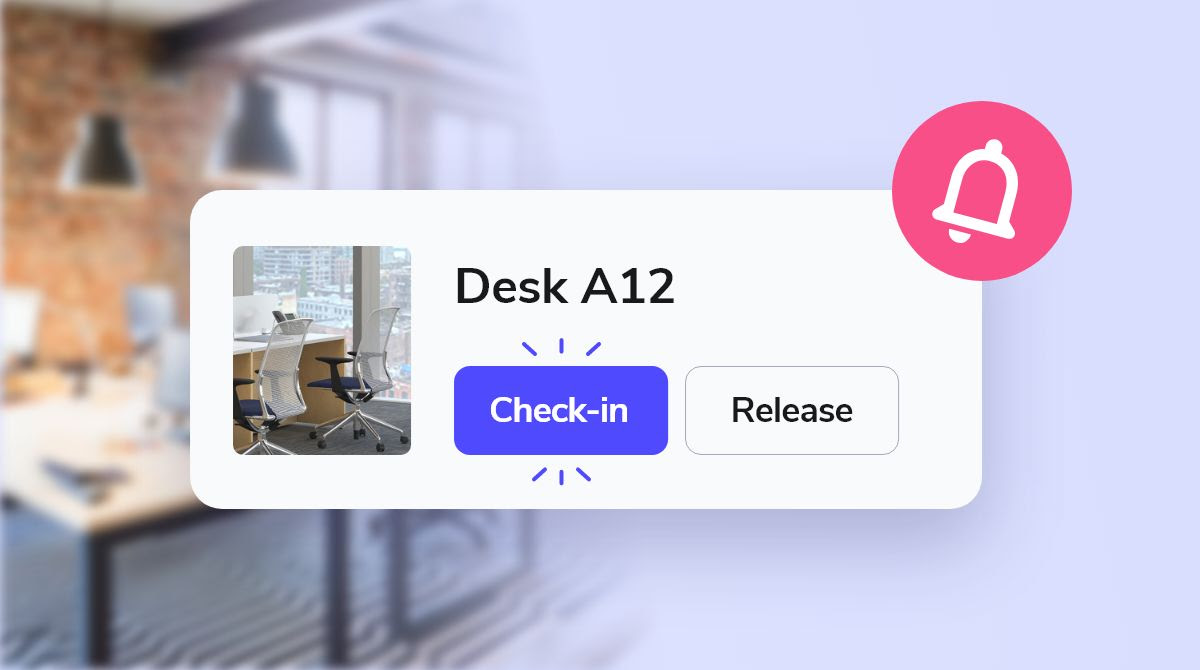
You can now enable check-in for selected categories of rooms, desks, or parking spots. If users don't check in on time, the spot is automatically released for others.
How it works:
When check-in is required, users get a reminder (via email or mobile app) to confirm their reservation. If they don't check in on time, the spot is automatically released for others to book.
Where to set it up:
Enable check-in per category and define how far in advance users need to confirm to keep the booking active.
Why use it:
✅ Avoid wasted space from forgotten bookings
✅ Let others use spots that would otherwise sit empty
✅ Keep your workspace flowing without micromanaging
Need more guidance? Book a 1-on-1 demo with our team.

Build your office map in minutes — drag-and-drop floorplans
You can now build a fully interactive office map in Whatspot – no support tickets, no IT help, and no delay. Upload your blueprint, place spots, and you're done.
With drag-and-drop floorplans, your team gets a clear, visual way to find desks, rooms, or parking spots and book instantly.
➡️ How it works:
- Upload your office blueprint (PDF, PNG, etc.)
- Place desks, rooms, parking or other bookable spots
- Add multiple floors or buildings as needed
✔️ No technical skills needed
✔️ Fully self-service
✔️ Works across floors and locations