🔐 SSO and managed access for Microsoft Entra ID and Google Workspace
Whatspot can now connect directly to your company identity through Microsoft Entra ID or Google Workspace. Choose simple SSO for easy company-wide sign-in, or use a managed integration to keep users and access synchronized with your company directory.
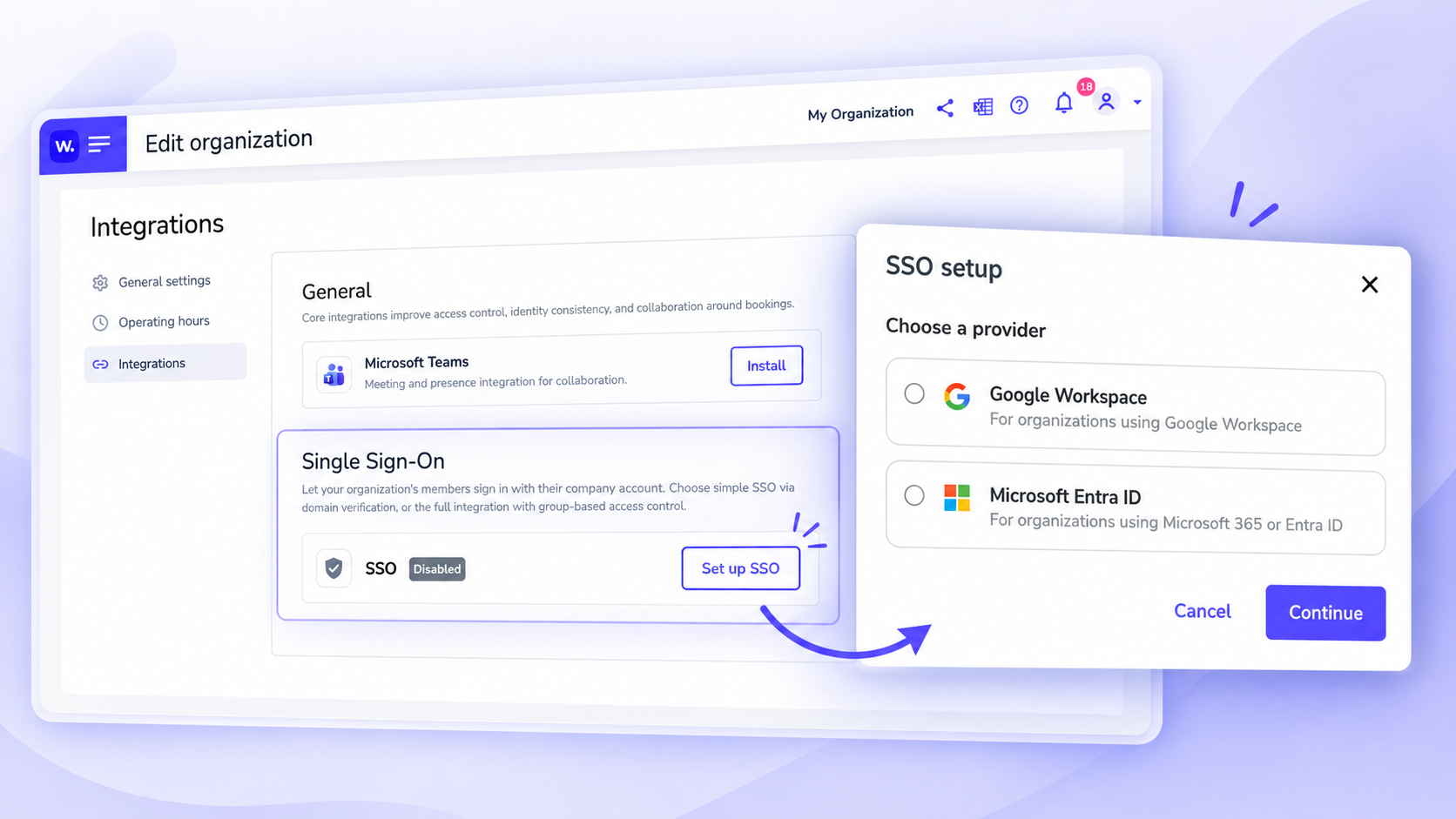
Choose the setup that fits your organization
Simple SSO
Employees sign in with their existing company account. No separate Whatspot password is required, and users from your verified company domain can be onboarded automatically.
Managed user access
For organizations that need centralized user management, Whatspot can follow your company directory and user lifecycle.
• Automatically provision and deprovision users
• Keep access synchronized as employees join, move between teams, or leave
• Manage access through directory groups
• Reduce manual user administration in Whatspot
Keep access flexible
SSO doesn't have to lock out external users. You can combine company SSO with invited users such as consultants, partners, or guests.
For stricter environments, you can also require SSO as the only sign-in method.
How to set it up
1. Open Organization settings → Integrations.
2. Click Set up SSO.
3. Choose Google Workspace or Microsoft Entra ID.
4. Select the integration level that fits your organization.
5. Complete the connection with your company account.
6. For Managed access, contact our Customer Success team and we'll help you complete the integration.
Need help with setup? Contact us at support@whatspot.app and we'll be happy to help.
Other improvements
🗓️ Recurring bookings: now up to 60 repetitions
You can now create up to 60 repetitions for one recurring booking, instead of 20.
This makes it easier to plan regular activities for the whole year.
Useful for training rooms, lecture halls, dance studios, classrooms, and other spaces with repeating schedules.
🕐 Operating hours that match your real operation
Set operating hours for the entire organization and adjust them for individual spots when needed. Each day can have a different schedule, including closed days or multiple time intervals.
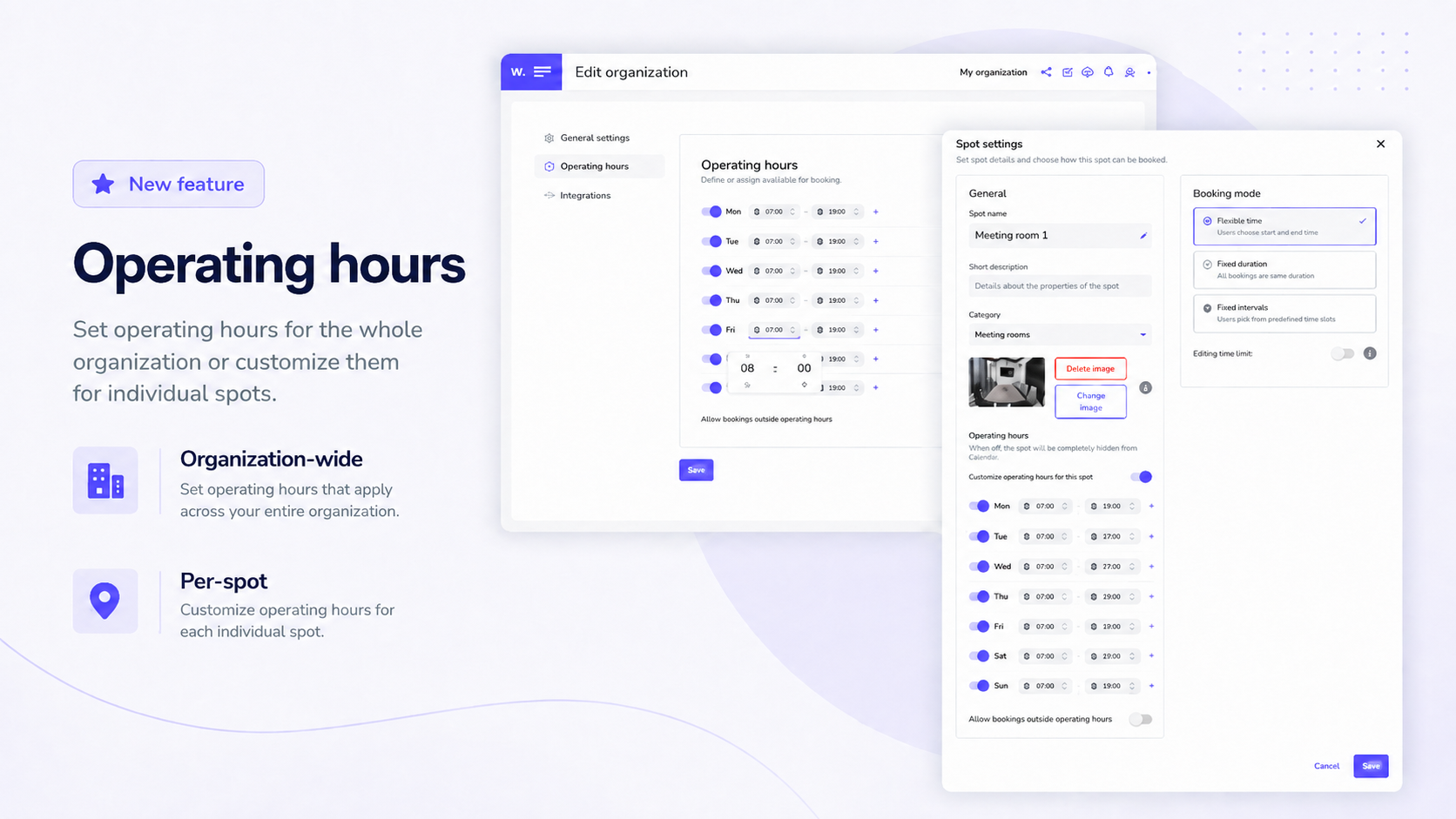
What's new?
• Set different operating hours for each day of the week.
• Add multiple time intervals within one day, for example morning and afternoon opening hours.
• Mark specific days as closed.
• Use organization operating hours as the default setting for all spots.
• Set custom operating hours for spots with different schedules.
Business impact
✅ Admins do not need to adjust the entire operation because of exceptions for a few spaces. Most spots can follow the shared schedule, while only exceptions use their own hours.
✅ Availability, views, and statistics better reflect the actual operation of an office, coworking space, or shared venue.
✅ Operating hours can be used only as an operational reference while still allowing bookings outside them when needed.
How to use
1. Set the default Operating hours for the entire organization.
2. For each day, define operating times, multiple intervals, or a closed day.
3. Set custom Operating hours for spots that work differently.
4. If needed, choose whether bookings can also be made outside the configured operating hours.
🗓️ New Booking Modes for every type of space
Not every space should be booked the same way. New Booking Modes let you configure reservations based on how each space is actually used.
Not every space should be booked in the same way. A meeting room often needs flexible reservation times, a parking spot usually works best as a full-day booking, and shared spaces often require clearly defined time slots. That is why we are introducing new Booking Modes, allowing you to configure reservations based on how each space is actually used.
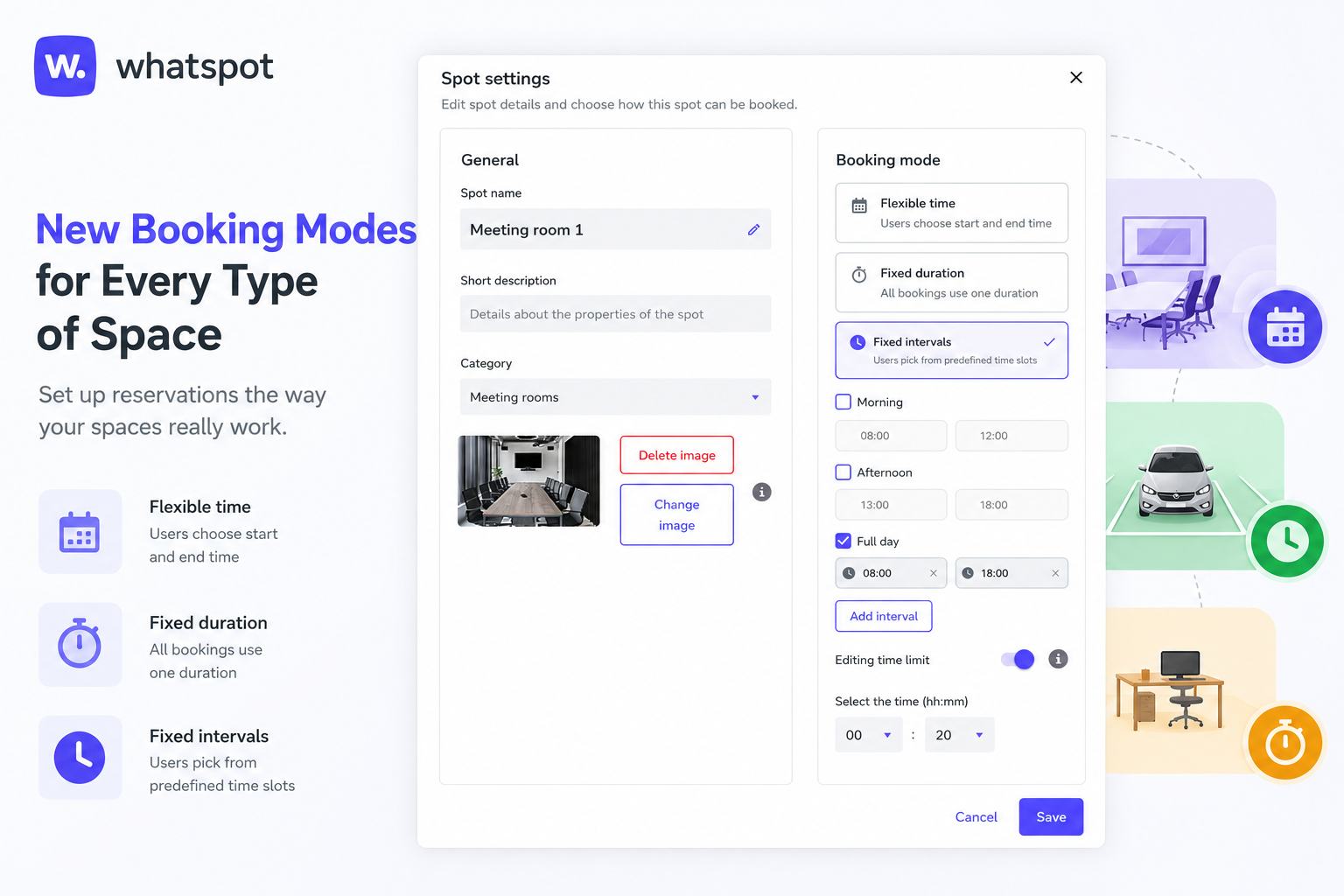
What's new:
• Flexible Booking allows users to choose any reservation start and end time. Ideal for meeting rooms, office spaces, and everyday internal use.
• Fixed Duration creates bookings in predefined time slots, such as 60-minute reservations. Perfect for shared spaces, classrooms, studios, or public rentals.
• Fixed Intervals allows reservations only within predefined blocks, such as a full day, morning, or afternoon. Best for parking spots, desks, company vehicles, or equipment.
• Each space can have its own booking mode based on its specific rules and usage.
• Booking Modes work for both internal reservations and public booking forms. When needed, administrators can still create reservations outside the standard rules using a flexible booking mode.
Why use it:
✅ Fewer booking mistakes thanks to reservation rules that reflect real-world usage.
✅ Easier management of different types of resources within a single organization without compromises.
✅ Better space utilization and a clearer booking process for both employees and external visitors.
How to use:
1. Open the administration settings of the selected space or resource.
2. Choose the desired booking mode in the reservation settings.
3. Configure slot lengths or time intervals as needed.
4. Save your changes and start accepting bookings using the new rules.
5. If an exception is required, administrators can create a reservation using the flexible mode.
👥 Book reservations for colleagues or guests
Administrators and category managers can now create reservations for other users or external guests. The feature simplifies visitor management and team bookings.
Whatspot can now create reservations for other users or external guests directly from the booking stepper. The feature simplifies visitor management and team bookings.
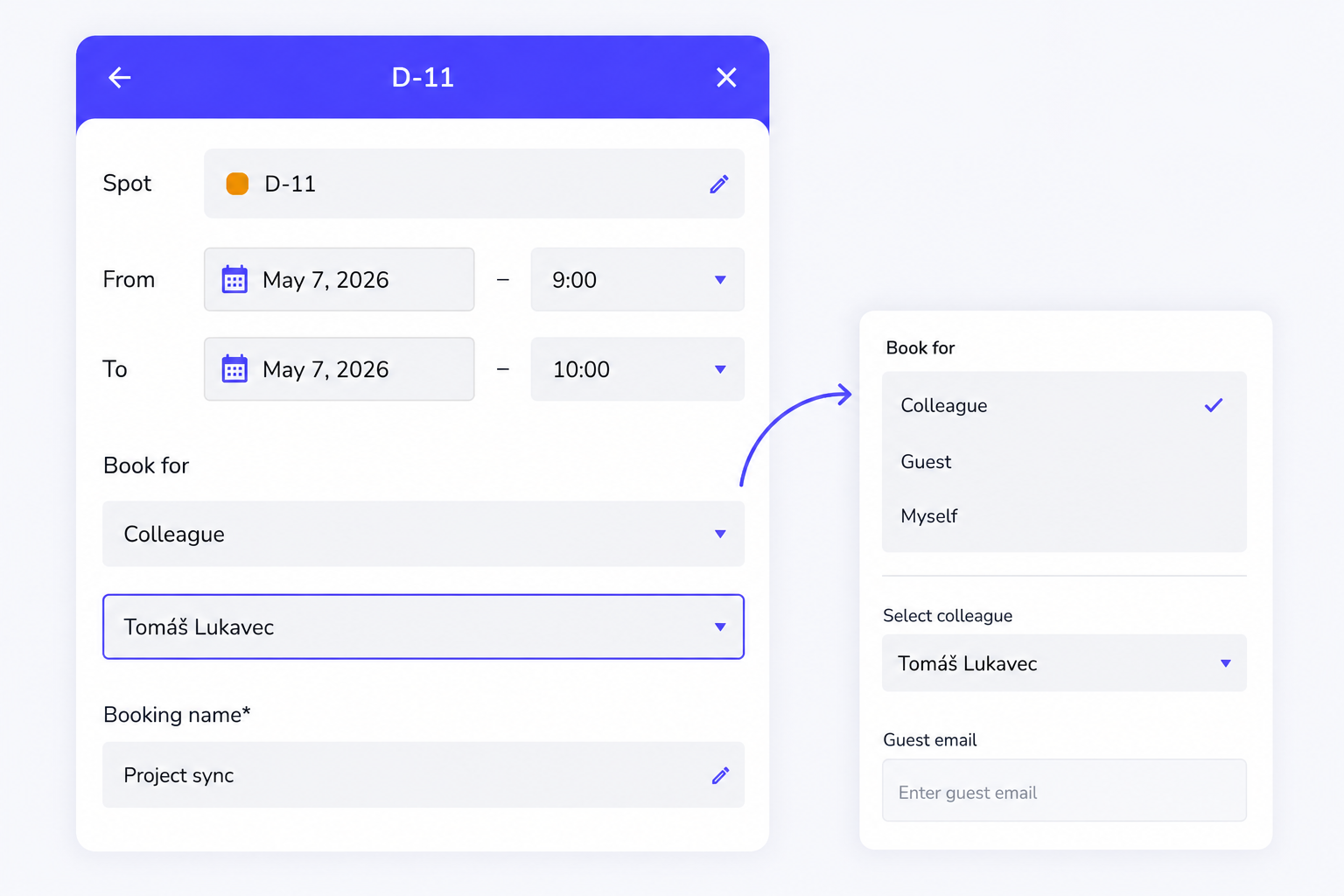
What's new:
• The reservation stepper now includes a selection for who the reservation is created for.
• Administrators and managers can create reservations for themselves or colleagues.
• If public reservations are enabled, the Guest option is available.
• After entering the guest e-mail address, the guest automatically receives a reservation notification.
Why use it:
✅ Faster reservation management for receptions and office managers.
✅ Easier organization of visits and external meetings.
✅ Guests automatically receive all important information by e-mail.
How to use:
1. Open the reservation creation stepper.
2. Select who the reservation should be created for.
3. Choose a colleague or the Guest option.
4. Enter the guest's e-mail address for the notification.
⏰ Upcoming reservation reminder
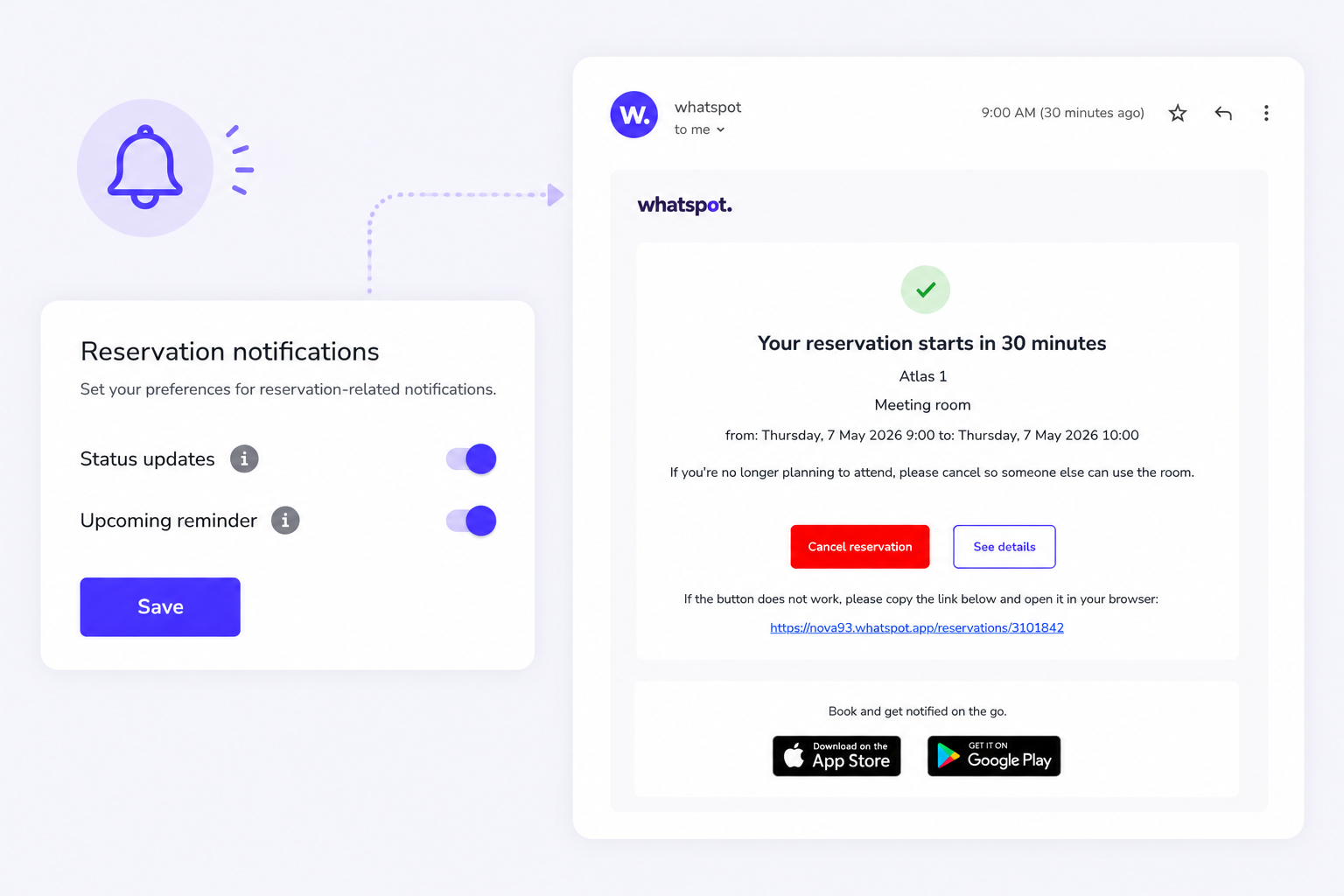
Whatspot can now notify users about upcoming reservations by e-mail and, in the mobile app, also by push notification. The feature helps reduce forgotten bookings and frees up unused spaces in time.
A new reminder notifies users before their reservation starts — by e-mail, and by push notification in the mobile app. This helps reduce forgotten bookings and frees up unused spaces in time.
What's new:
• A new Upcoming reminder option is now available in Edit Profile.
• Whatspot sends an e-mail notification 30 minutes before the reservation starts.
• Mobile app users also receive a push notification.
• Users can keep the reservation unchanged or cancel it immediately.
• The reminder works automatically for all future reservations.
Why use it:
✅ Fewer blocked spaces without actual usage.
✅ Better availability of desks and meeting rooms.
✅ Users have a better overview of their reservations.
How to use:
1. Open Edit Profile.
2. Enable the Upcoming reminder option.
3. A notification will arrive 30 minutes before the reservation — by e-mail, or by push notification in the mobile app.
4. Keep or cancel the reservation directly from the notification.